How to Use Crop Image: Step-by-Step Tutorial
This walkthrough uses the Crop Image tool.
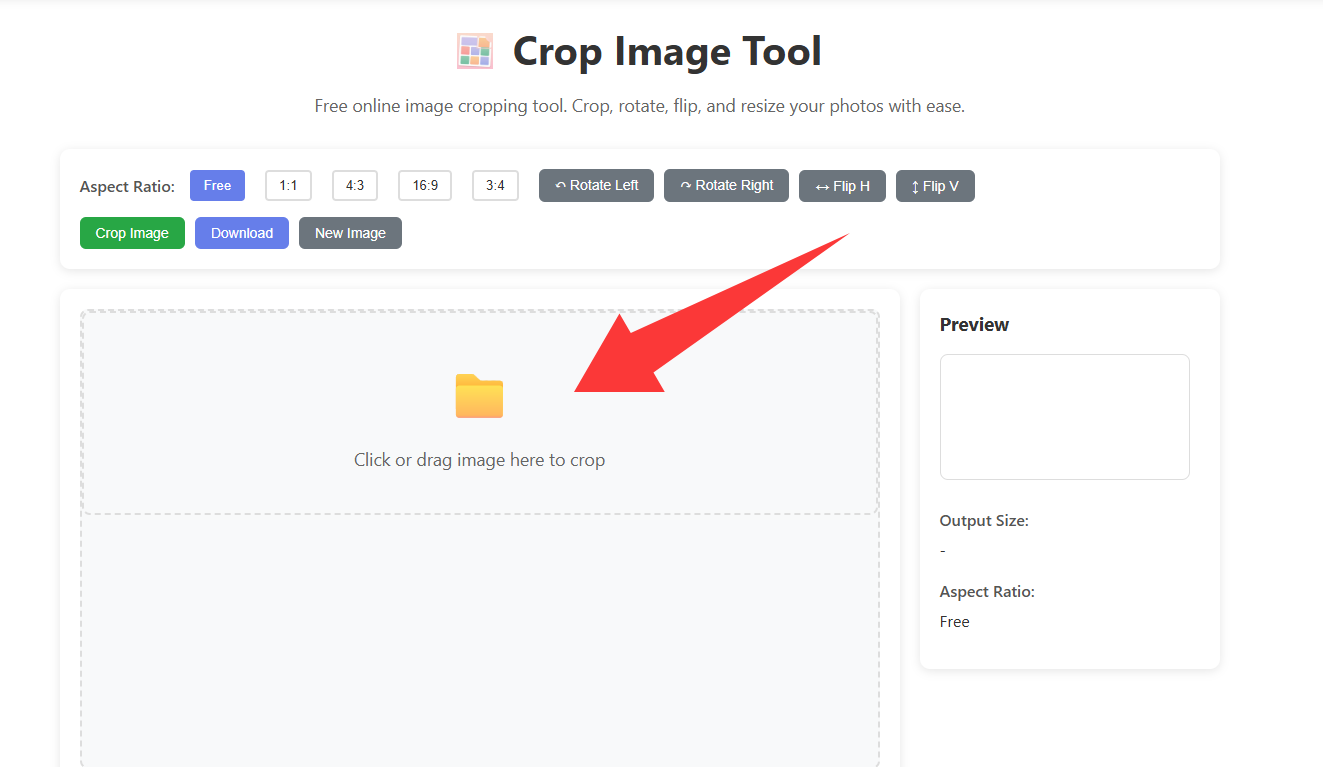
1. Upload your photo
Open Crop Image and upload or drag a file.
Planning to combine crops later? Use Image Stitching or Collage Maker.
2. Aspect ratio, crop box, rotate, flip, and zoom
Use Free, 1:1, 4:3, 16:9, or 3:4 and drag the crop overlay.
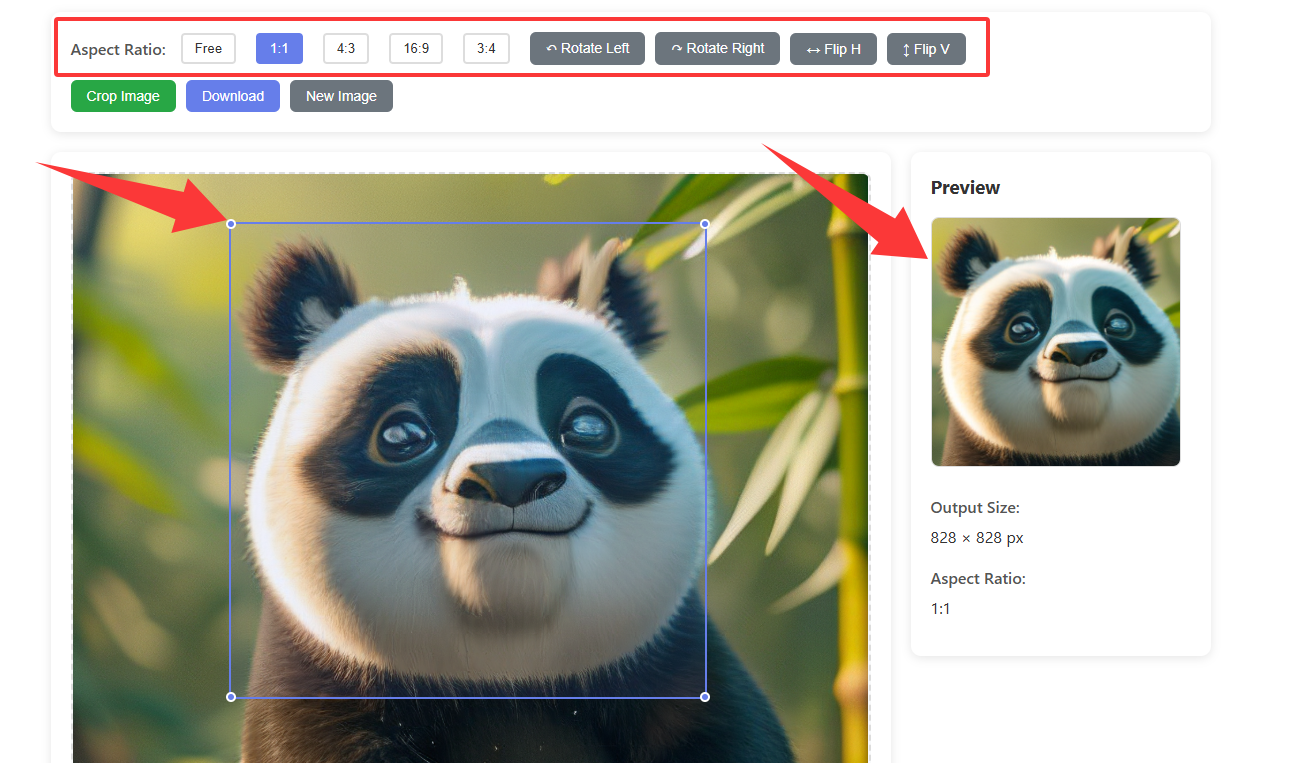
Use rotate/flip buttons and the zoom slider.
3. Click Crop Image and Download
When the preview looks right, click Crop Image, then click Download to save the PNG.
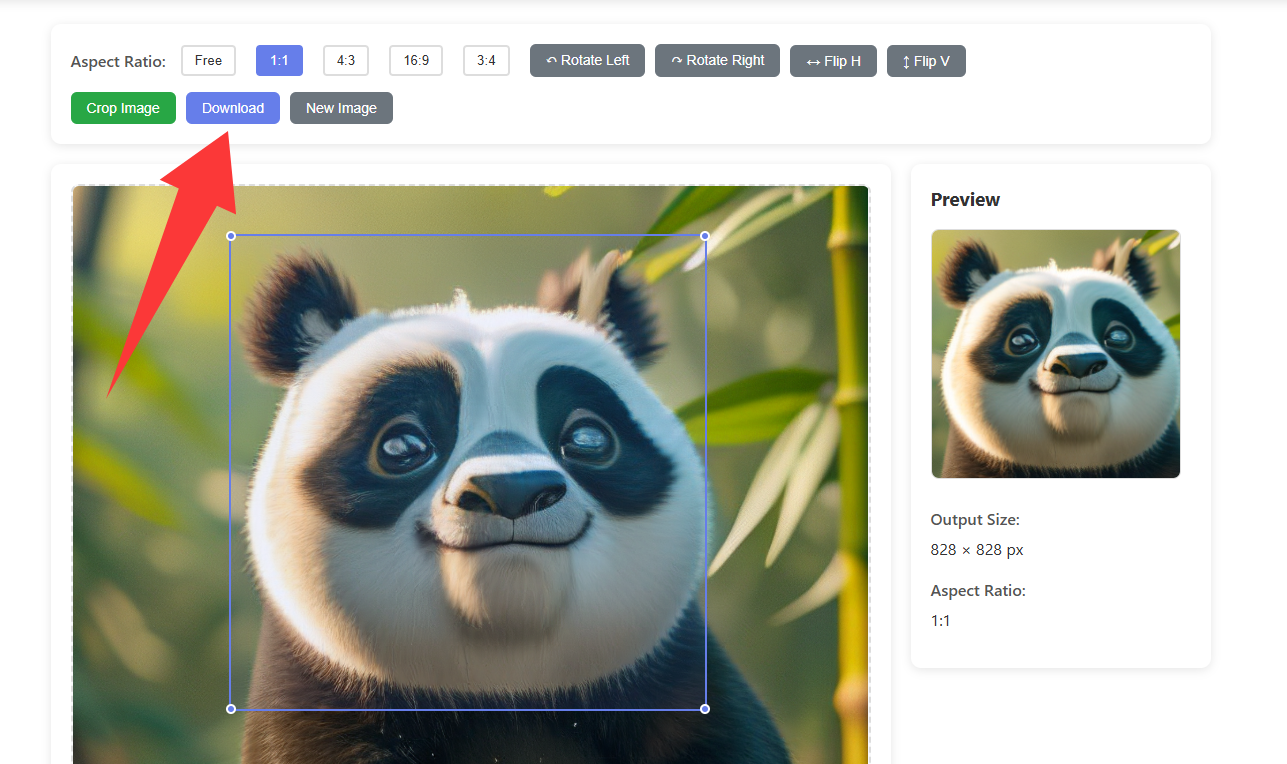
4. Example downloaded image
The saved file matches the cropped preview.

For slideshow GIFs, try GIF Maker after exporting.
Open Crop Image